Watchlist
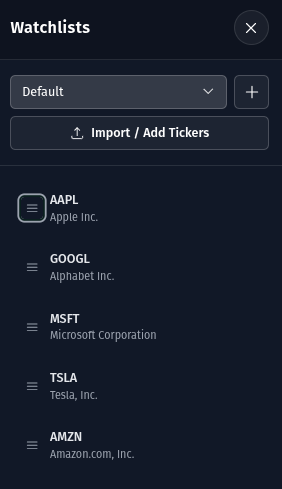
The Watchlist feature allows you to track multiple stocks in one convenient location, making it easy to monitor your favorite tickers and quickly switch between them for analysis.
Accessing the Watchlist
- Click the watchlist icon ( horizontal lines ) from the chart toolbar

The watchlist panel will open on the right of the screen.
Adding Tickers to Your Watchlist
There are multiple ways to add tickers to your watchlist:
From the Watchlist Panel
- Open the Watchlist panel from the sidebar
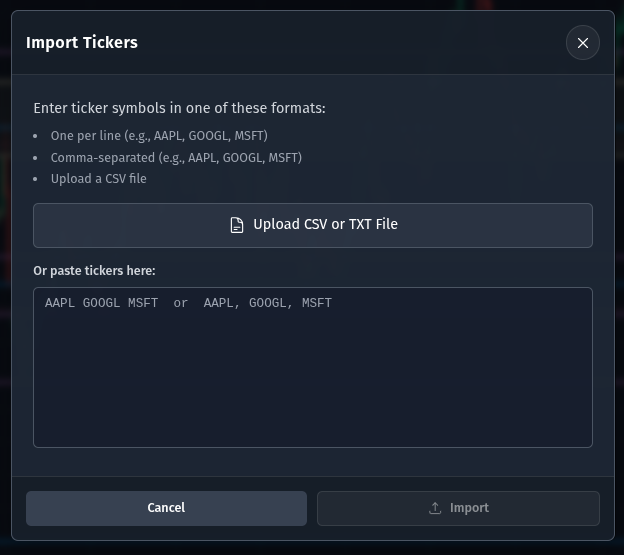
- Click the "Import / Add Tickers" button
- Enter ticker symbols in one of the supported formats:
- One per line (e.g., AAPL, GOOGL, MSFT)
- Comma-separated (e.g., AAPL, GOOGL, MSFT)
- Upload a CSV or TXT file
- Click "Import" to add them to your watchlist
Managing Your Watchlist
Removing Tickers
To remove a ticker from your watchlist:
- Hover over the ticker in the watchlist
- Click the remove icon (trashcan) that appears
- The ticker will be immediately removed from your list
Organizing Your List
Tickers in your watchlist can be reordered by:
- Click and hold on a ticker drag icon
- Drag it to your desired position
- Release to drop it in the new location
Loading Tickers from Watchlist
To quickly load a ticker from your watchlist onto the chart:
- Open the Watchlist panel
- Click on any ticker in your list
- The chart will automatically load the selected ticker
This provides a fast way to switch between your tracked stocks without using the ticker search.
Integration with Charts
The Watchlist feature is designed to enhance your trading workflow:
- Quick Access: Switch between tickers instantly without typing
- Persistent Storage: Your watchlist is saved and syncs across your devices
Best Practices
Building Your Watchlist
- Sector Focus: Group related stocks to monitor sector trends
- Key Levels: Add stocks that are approaching important support/resistance levels
- Event Tracking: Include stocks with upcoming earnings or news events
- Favorites: Keep your most-traded stocks readily accessible